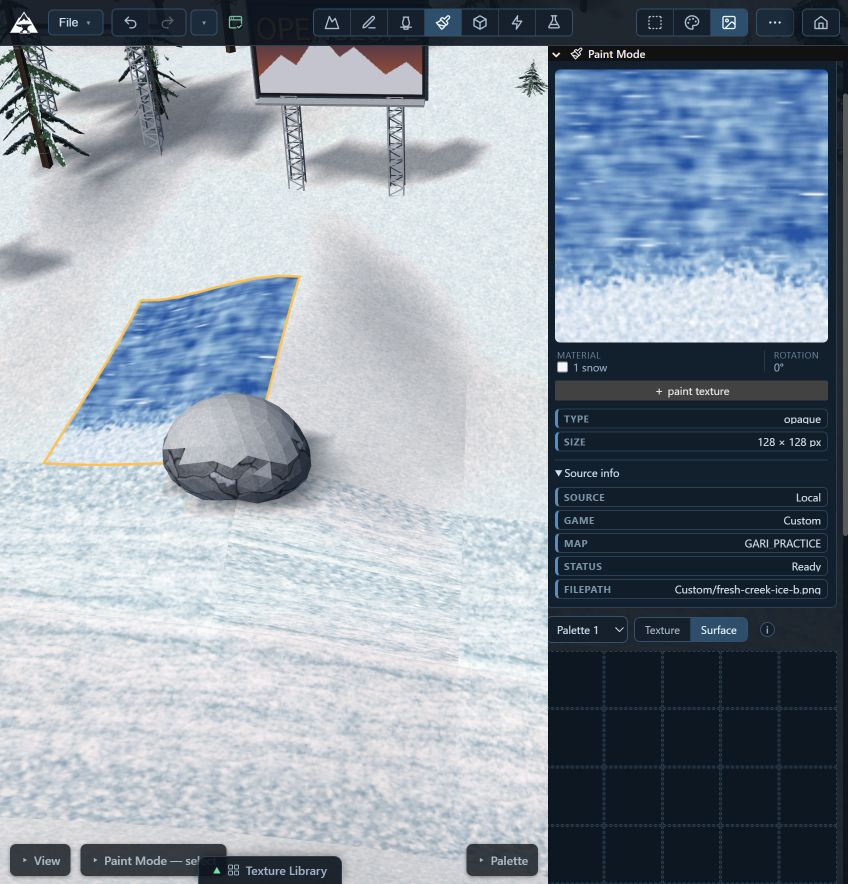
A terrain patch carries one texture tile. Paint replaces that whole tile and writes the brush’s ride material. The preview shows both the image and Material before you place it.
A blue image can still ride as snow. Check the Material readout rather than judging the physics from the picture.
Examples use a local copy of GARI FRESH ↗, with its custom textures and props. Open your practice copy →
Library & palette.
| Tool or control | Use it for |
|---|---|
| Texture Library | Browse available textures. Game and Map narrow the source; Local/Server appears where available. |
| Custom / + tile | Import your own image into the open mountain. Large images shrink to fit the editor’s tile budget. |
| Generate texture | Use the sparkle tile to generate art when your own provider integration is configured. |
| Library filters | Hide staged tiles or unused reference textures; reveal them again when searching. |
| Palette | Drag tiles into cells, arrange a useful set, then click a cell to pick it up. |
| Palette slots | Keep different arrangements in the numbered palette slots. |
| Surface view | Right-click a filled palette cell to choose its ride material, then pick that cell up again. |
Place & inspect.
| Tool or control | Use it for |
|---|---|
| Paint a tile | Click or drag over terrain while holding a texture. The ghost shows the placement. |
| Rotate← / → | Turn the held tile, or selected painted tiles, by a quarter turn. |
| MirrorShift+← / → | Mirror deliberately when the artwork needs it. |
| SampleMiddle-click | Middle-click a textured surface to inspect it and pick up its tile and ride material. |
| Put down / inspectEsc | Press Esc, then click a painted patch to read its tile, Material and orientation. |
| Select rangeShift+click | With the brush down, Shift-click to select a block of painted cells. |
| Clear tileDelete | Remove a selected texture assignment. The patch’s ride material remains. |
| Surface type overlay | Use the top-bar Surface type view to inspect ride assignments across the terrain. |
Worked examples.
Example 01
Paint one contrasting tile
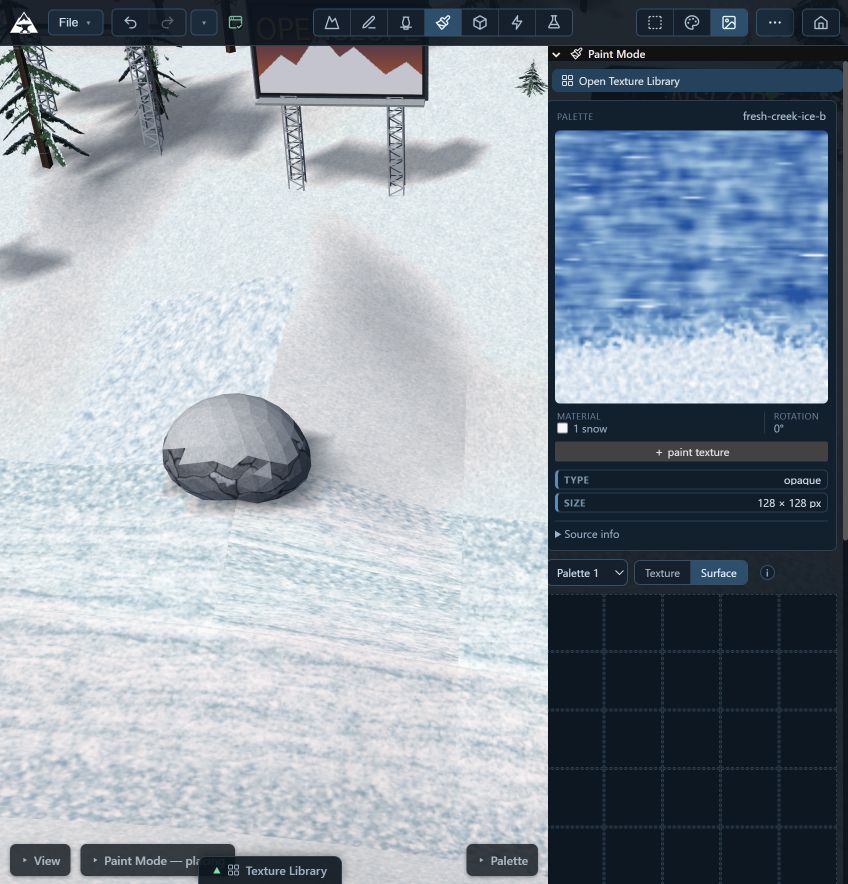
- Open Texture Library → Game: Custom → Map: your copy. Choose fresh-creek-ice-b, then close the library.
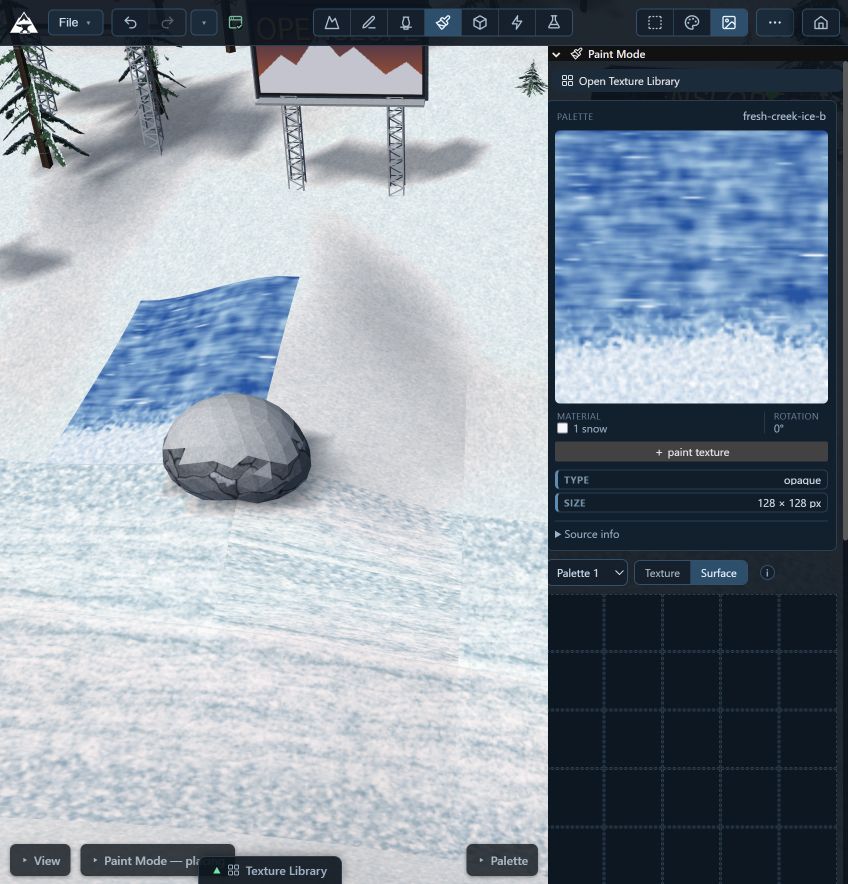
- Use an isometric view of open snow beside the groomed strip. Click inside one patch to paint it.
- Compare Before and Painted. The blue image replaces that whole patch; arrow keys rotate the tile.
Example 02
Inspect the patch you painted
- Press Esc to put the brush down, then click the blue patch.
- Read Material and rotation. Expand Source info to see the ready Local asset Custom/fresh-creek-ice-b.png.
- Use Surface type view to compare ride assignments across the map, then Test to check the feel.