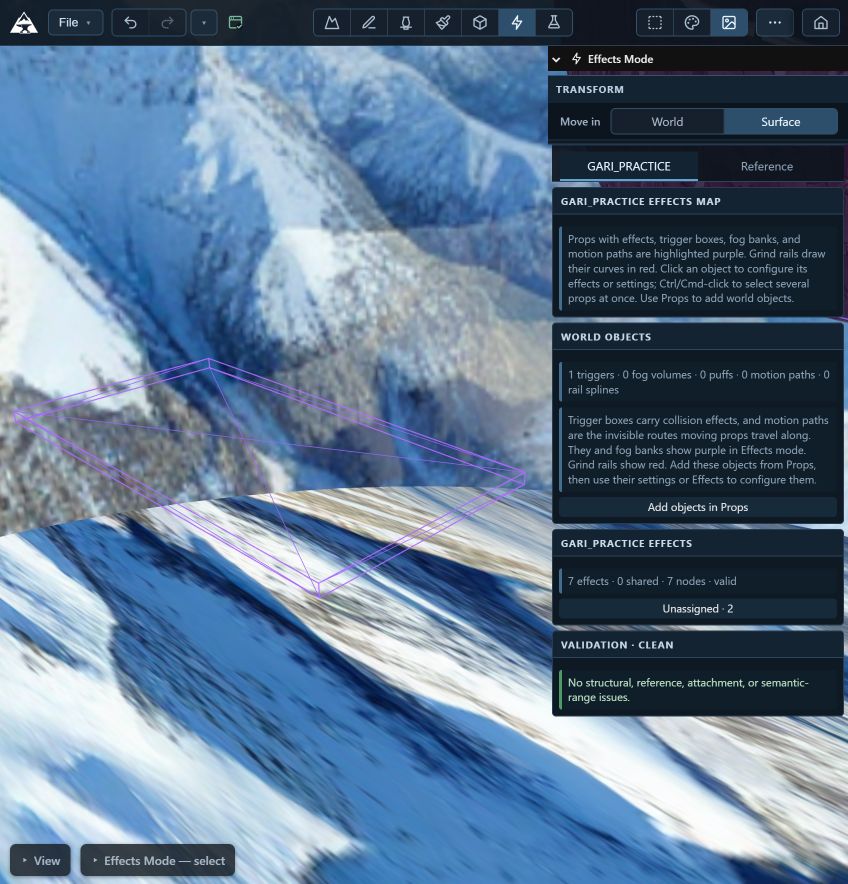
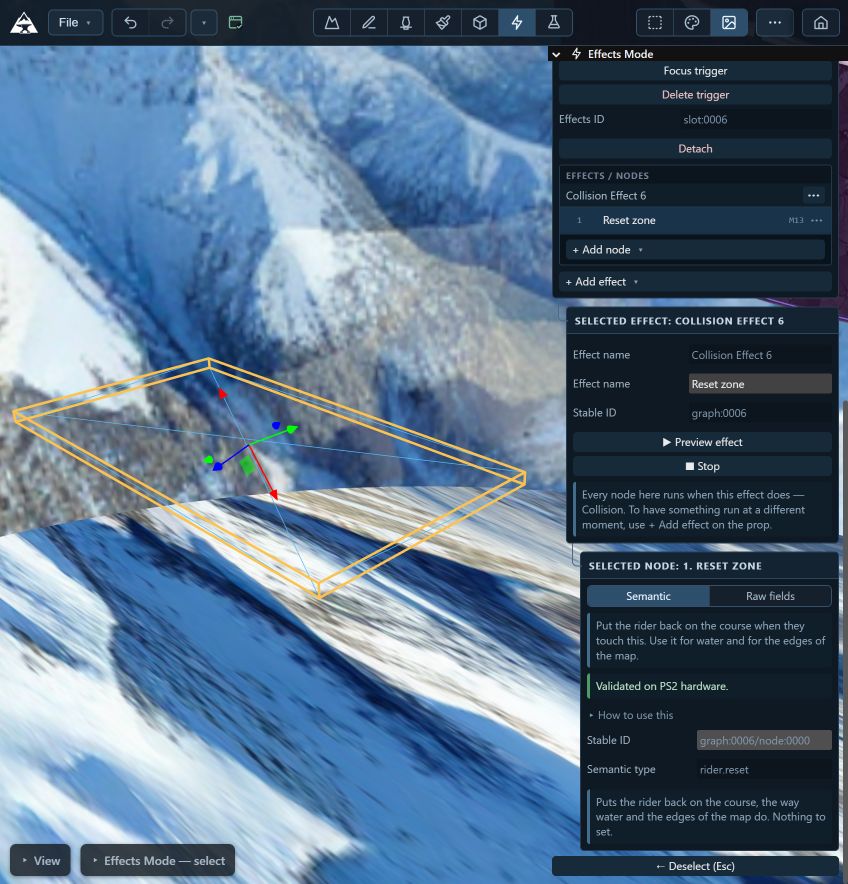
Select an object in Effects, or open Effects from its Props settings. The panel keeps the object’s effects and node list together while you inspect the selected node.
An effect’s circumstance decides when its nodes run. For example, the reset zone’s Collision effect runs when the rider touches its volume.
Examples use a local copy of GARI FRESH ↗, with its custom textures and props. Open your practice copy →
Find the object & effect.
| Tool or control | Use it for |
|---|---|
| Mountain / Reference | Author your map’s effects or inspect a loaded reference. |
| Effects map | Select highlighted props, trigger boxes, fog banks, paths or rail splines in the viewport. |
| Add objects in Props | Return to the shared launcher to create a new world object. |
| Prop / special settings | Move between the full prop inspector and a special object’s compact controls. |
| Effects / nodes list | Select a circumstance and a node to inspect its actual behaviour. |
| Unassigned | Inspect effects without a host and shared effect functions. |
Worked examples.
Example 01
Read the practice catch’s behaviour
- Create Practice catch with the Props example, then open its Effects.
- Select its Collision Effect and Reset zone node. Semantic explains that touching the volume returns the rider to the course.
- Use Special settings to adjust the box, then Test to check where it catches a fall.
Example 02
Check the whole map
- Deselect to return to the Effects map.
- Review world-object counts and Validation. The practice capture has a clean result after adding its reset zone.
- Click a relevant object to resolve a reported issue. Keep shared effects in mind: changing one can affect several placements.